
Videos Not Playing on AMAU?
Updated
If you’re experiencing issues with video playback on AMAU, please know that most playback problems are temporary and can usually be resolved with a few simple troubleshooting steps. This guide explains the most common causes and provides clear solutions to help you get back to your studies as smoothly as possible.
Before You Begin
A playback issue affecting one student does not necessarily indicate a platform-wide problem. In many cases, video playback issues are related to device settings, internet connectivity, browser updates, or local network conditions.
We recommend following the steps below before contacting support.
How Our Videos Are Delivered
AMAU Academy uses Content Delivery Networks (CDNs) to deliver video content efficiently and reliably. CDNs distribute videos across servers worldwide and stream content from the server closest to your location.
What This Means for You
-
Faster loading times for most students
-
Reduced buffering during playback
-
Improved viewing experience overall
First-Time Viewing in Certain Regions
If you are the first viewer in your geographic area to watch a specific video, the CDN may need to retrieve it from the original server. This can cause a brief delay or buffering during the initial load. Once cached, the video will typically load faster for future views.
Internet Connectivity Considerations
Video streaming requires a stable internet connection. In some cases, connectivity issues may only become noticeable when playing video content.
Recommended Internet Speeds
-
HD Video: 18 - 35 Mbps
-
SD Video: 1 - 18 Mbps
Tip: Internet speeds can fluctuate throughout the day. If playback issues occur consistently at certain times, network congestion may be the cause rather than the platform.
Recommended Troubleshooting Steps
For Website Users
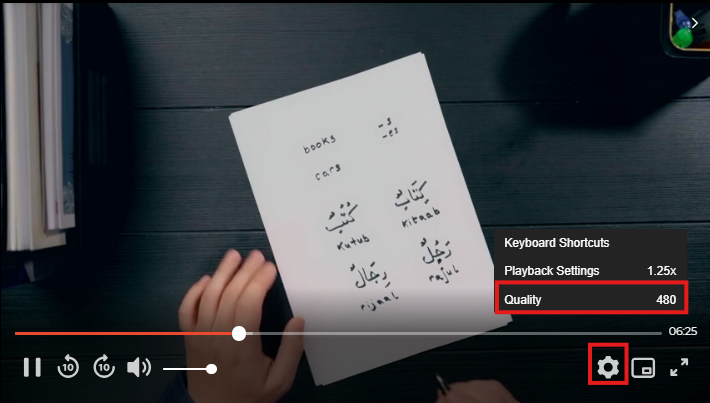
- Lower the video quality
-
Click the ⚙️ (gear icon) in the video player
-
Select Quality and choose a lower resolution
-
-
Clear browser cache and cookies
-
Chrome: Settings → Privacy & Security → Clear browsing data
-
Safari: Preferences → Advanced → Show Develop menu → Empty Caches
-
Firefox: Settings → Privacy & Security → Clear Data
-
-
Try a different browser
- Chrome, Firefox, Safari, or Edge
-
Restart your device and router
- Unplug your router for 20 - 30 seconds before reconnecting
-
Disable browser extensions
-
Try watching in an incognito/private window
-
If playback works, disable extensions one by one to identify the cause
-
For Mobile App Users
-
Connect to Wi-Fi instead of cellular data
-
Update the AMAU app to the latest version
-
Update your device’s operating system
-
Download the video for offline viewing
-
Fully close and reopen the app
-
Ensure sufficient storage space is available
For the best experience, we recommend always using the latest app version.
For Android, Chromecast, and Similar Devices
Due to hardware and software differences across devices, playback quality may vary.
To improve performance:
-
Disable battery optimisation for the app
-
Select a lower video quality
-
Ensure your device is up to date and still supported
Note: Some devices do not support 60FPS video smoothly. If stuttering occurs, videos rendered at 30FPS typically provide better performance.
Jazakumullahu Khayran for your patience and dedication to your studies. We appreciate the effort you put into seeking knowledge and are here to support you whenever needed.
For any further queries please contact helpdesk@amauacademy.com