
Troubleshooting Video Buffering Issues
Updated
If you experience buffering or slow video playback while watching lessons on AMAU, the issue is usually related to internet speed, device performance, or browser settings.
The steps below can help resolve most playback problems.
1. Check Your Internet Connection
A stable internet connection is required for smooth video playback.
Recommended speeds
• HD Video: 18 - 35 Mbps • SD Video: 1 - 18 Mbps
You can test your internet speed using:
[https://fast.com]
Internet speeds may fluctuate throughout the day, especially if the network is shared with other devices.
2. Adjust Video Quality
Lowering the video resolution can reduce buffering on slower connections.
On a web browser:
-
Click the Settings (⚙️) icon in the video player.
-
Select Quality.
-
Choose a lower resolution (such as 480p or 360p).
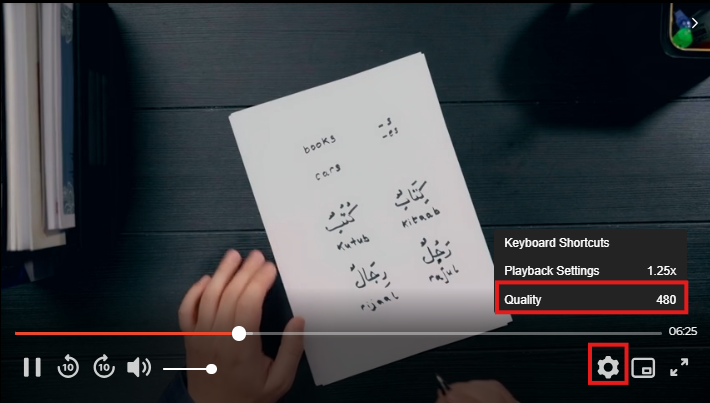
Note: On the AMAU mobile apps, video quality adjusts automatically based on your device and connection.
3. Clear Your Browser Cache
Stored browser data can sometimes affect playback.
To clear your cache:
Chrome Settings → Privacy and Security → Clear Browsing Data
Firefox Settings → Privacy & Security → Clear Data
Safari Preferences → Advanced → Show Develop Menu → Empty Caches
4. Close Unnecessary Tabs or Apps
Running multiple programs at the same time can slow video playback.
Try the following:
• Close unused browser tabs
• Shut down background applications
• On mobile devices, close other running apps
5. Restart Your Device and Router
Restarting your device can resolve temporary performance issues.
You may try:
• Restarting your computer, phone, or tablet
• Restarting your router (unplug for about 30 seconds, then reconnect)
6. Try a Different Browser or Device
If the issue continues, try:
• Switching browsers (Chrome, Firefox, Safari, Edge)
• Watching from a different device
• Connecting to a different internet network if available
7. Disable Browser Extensions
Some browser extensions can interfere with video playback.
You can test this by:
• Opening the video in an incognito/private window • Disabling extensions one at a time to identify the cause
8. Device-Specific Tips
Mobile App Users
• Update the AMAU app to the latest version
• Restart the app completely
• Use Wi-Fi instead of mobile data when possible
• Ensure your device has sufficient storage space
Smart TVs or Streaming Devices
• Update the device software or firmware
• Restart the device
• Use a wired internet connection if possible
Older devices may struggle with newer streaming technologies and may affect playback performance.
For any further queries please contact helpdesk@amauacademy.com